

Hot
Select options
This product has multiple variants. The options may be chosen on the product page
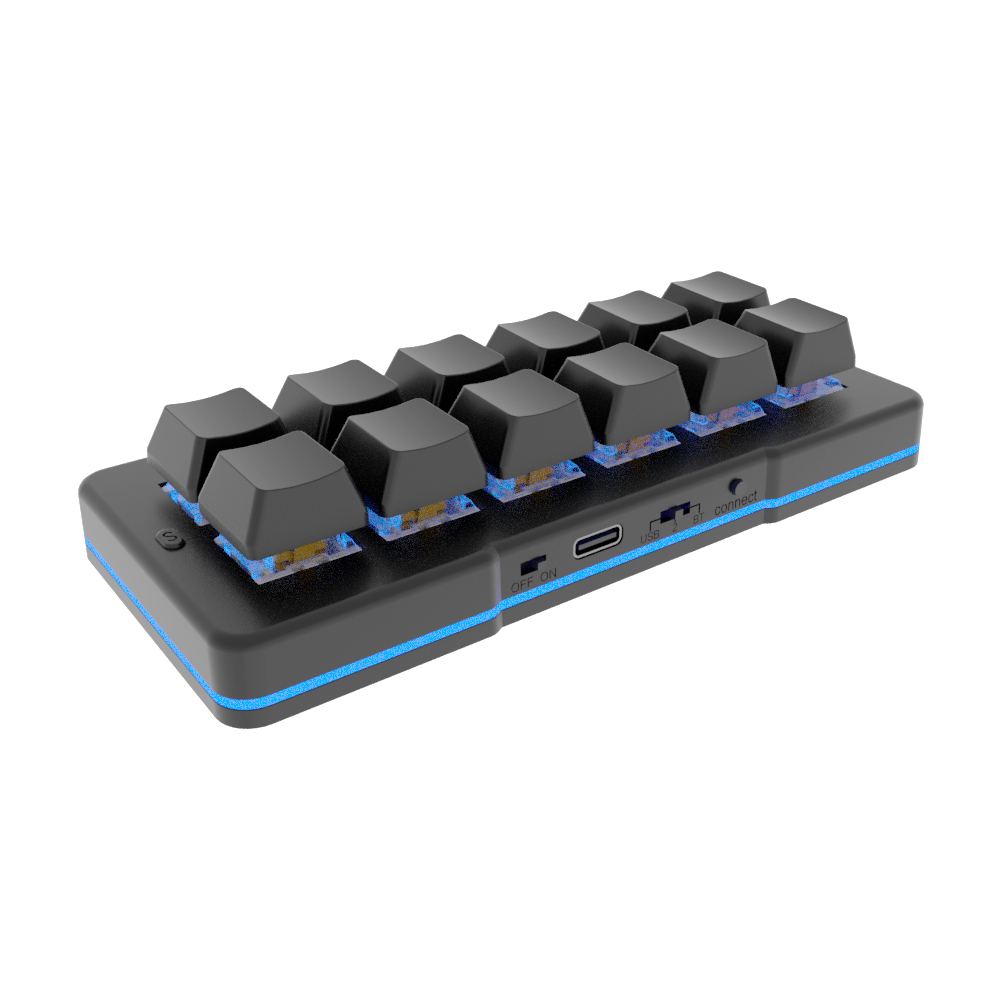
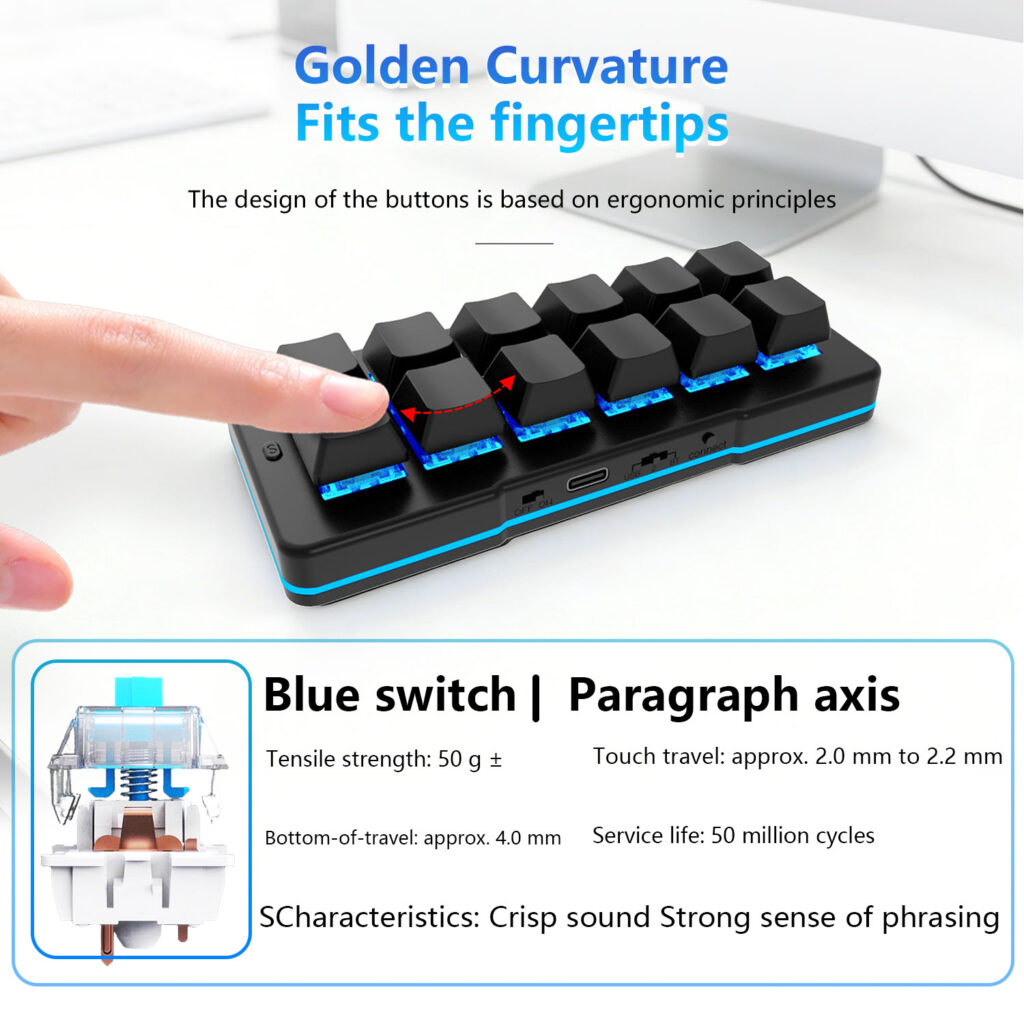
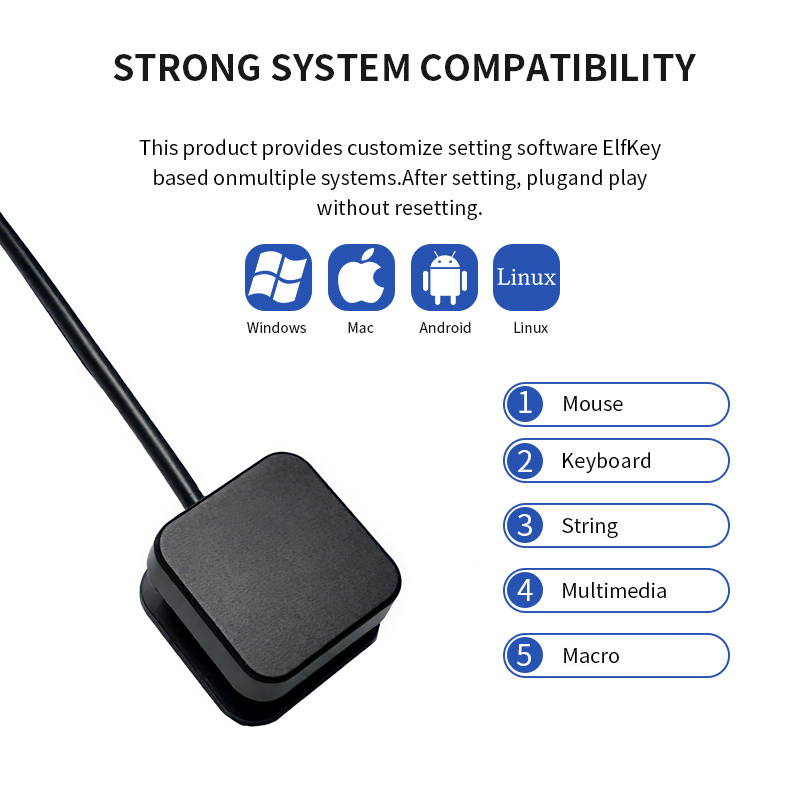
PCsensor 12 keys mini keyboard
$4.80 – $39.99Hot
Select options
This product has multiple variants. The options may be chosen on the product page
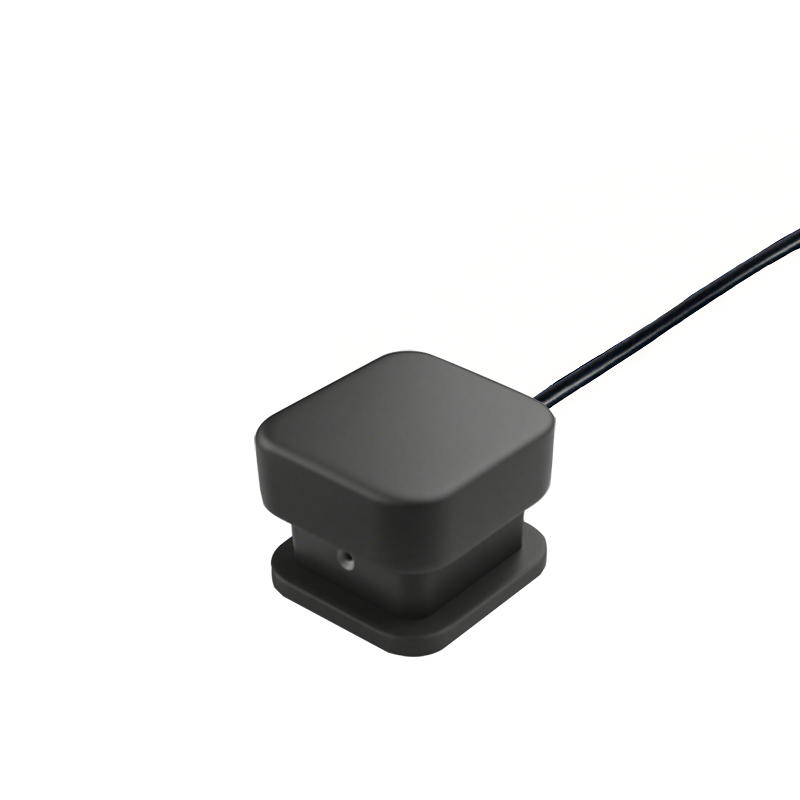
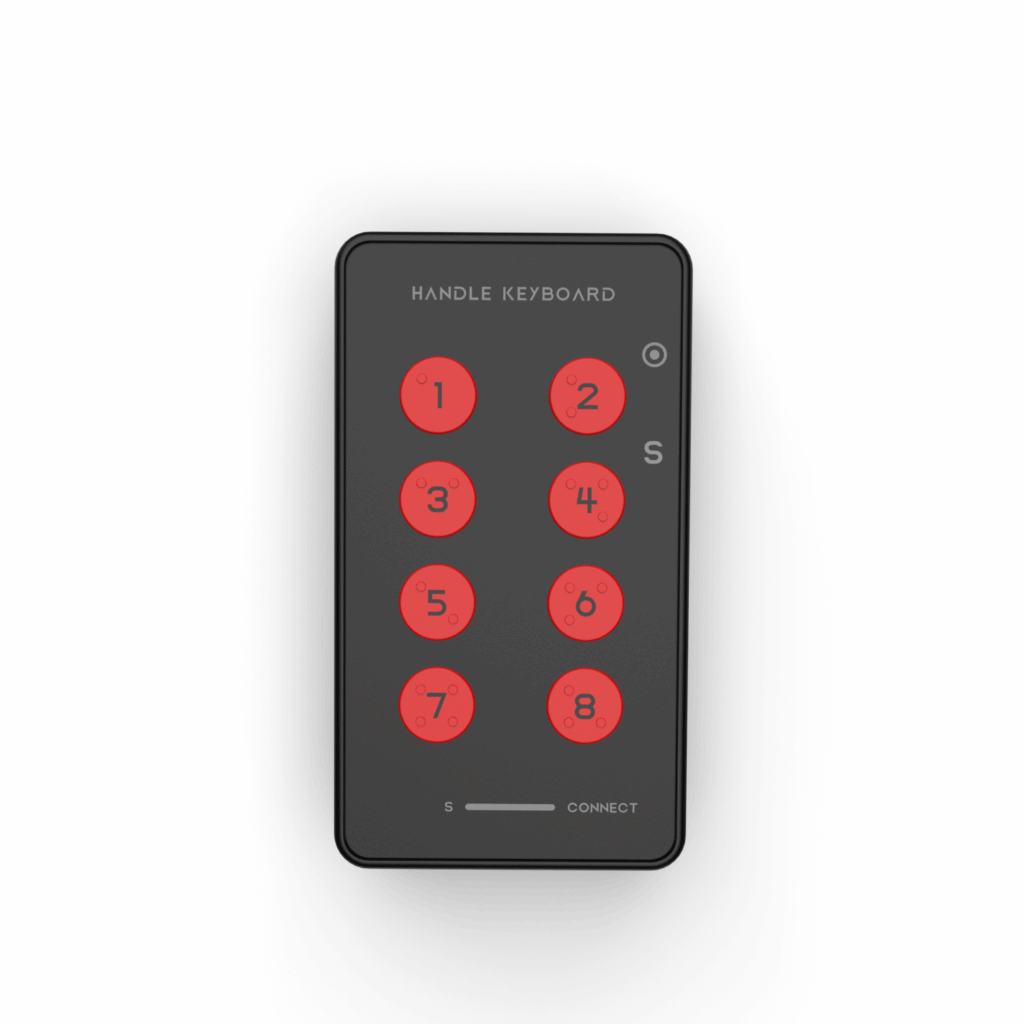
PCsensor One Click Mini Keyboard
$11.80 – $14.50Hot
Select options
This product has multiple variants. The options may be chosen on the product page
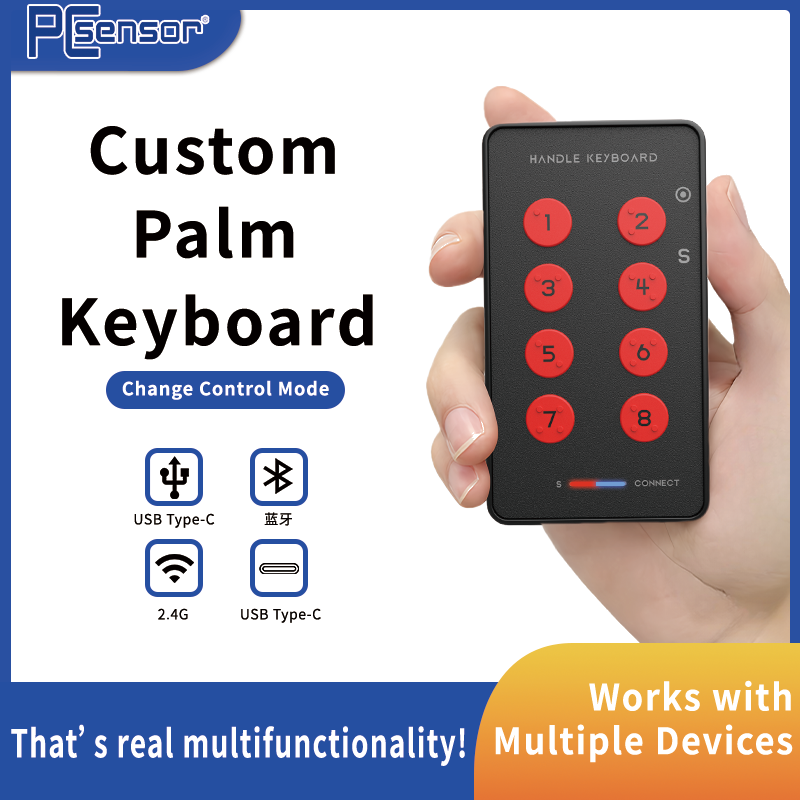
PCsensor USB Custom Multi-functional Palm Keyboard
$24.99 – $26.99Hot
Select options
This product has multiple variants. The options may be chosen on the product page
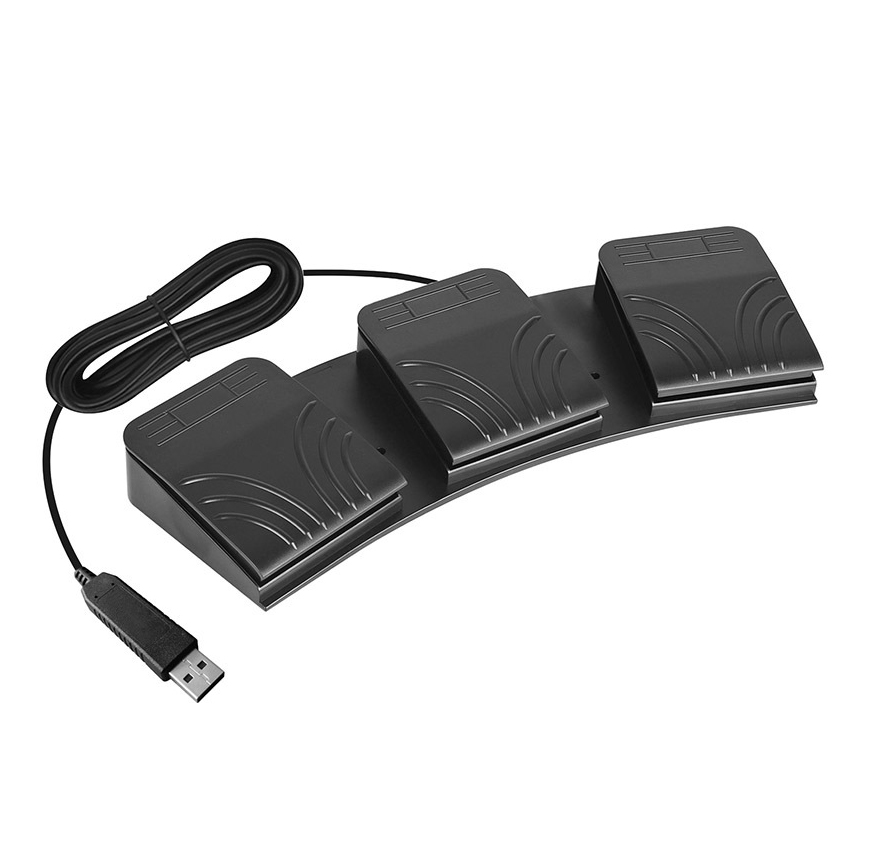
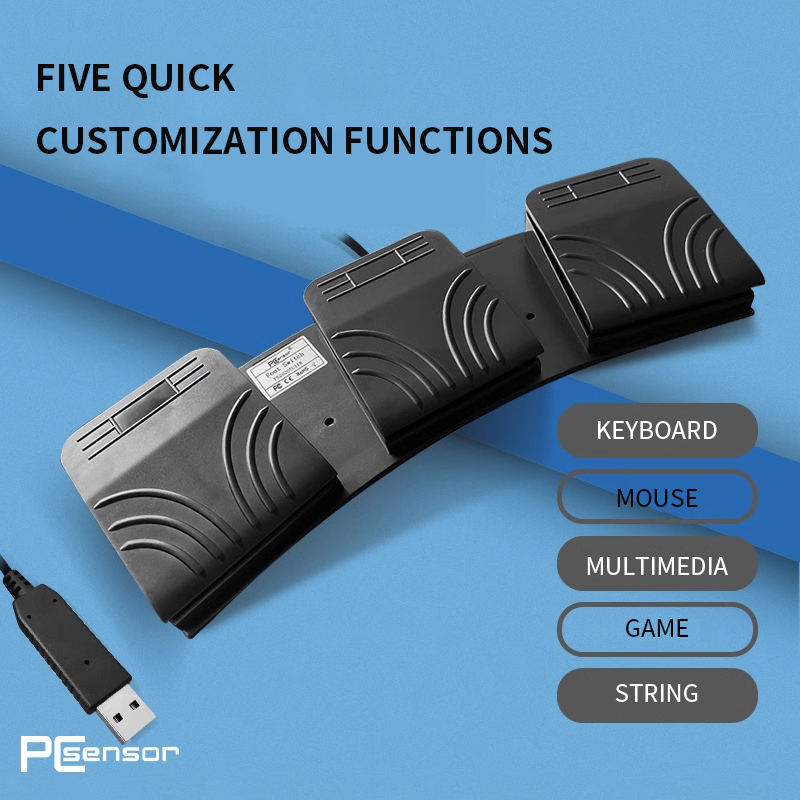
PCsensor USB Foot Switch Triple Pedals FS2020
$33.48 – $34.48Hot
Select options
This product has multiple variants. The options may be chosen on the product page
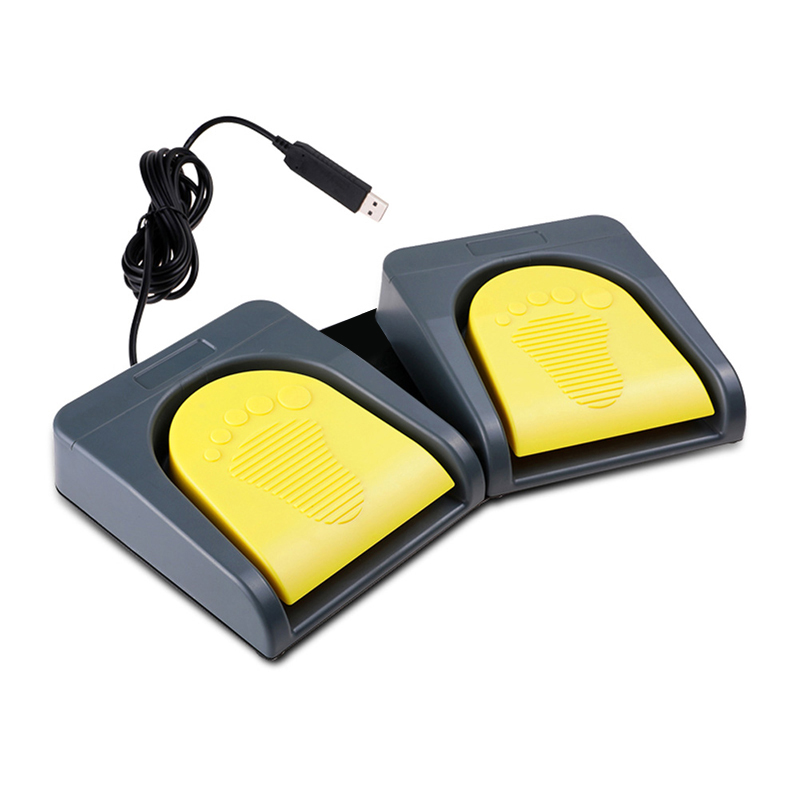
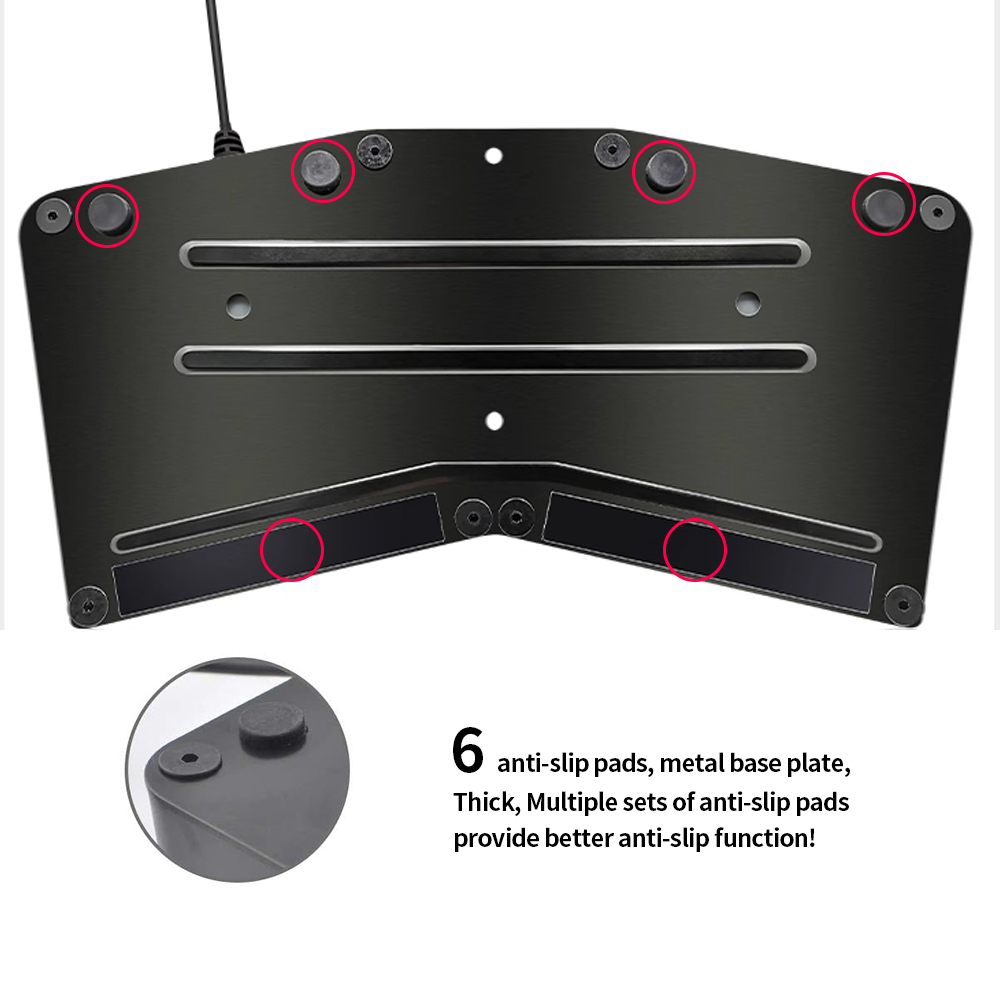
PCsensor USB Foot Switch Dual Pedals FS2016
$35.42 – $36.42Hot
Select options
This product has multiple variants. The options may be chosen on the product page
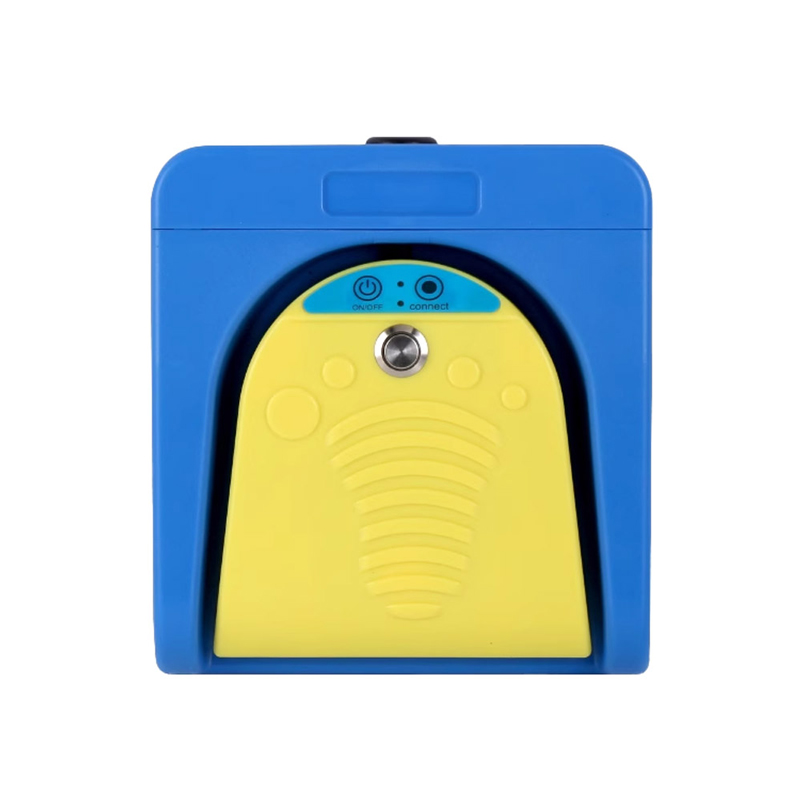
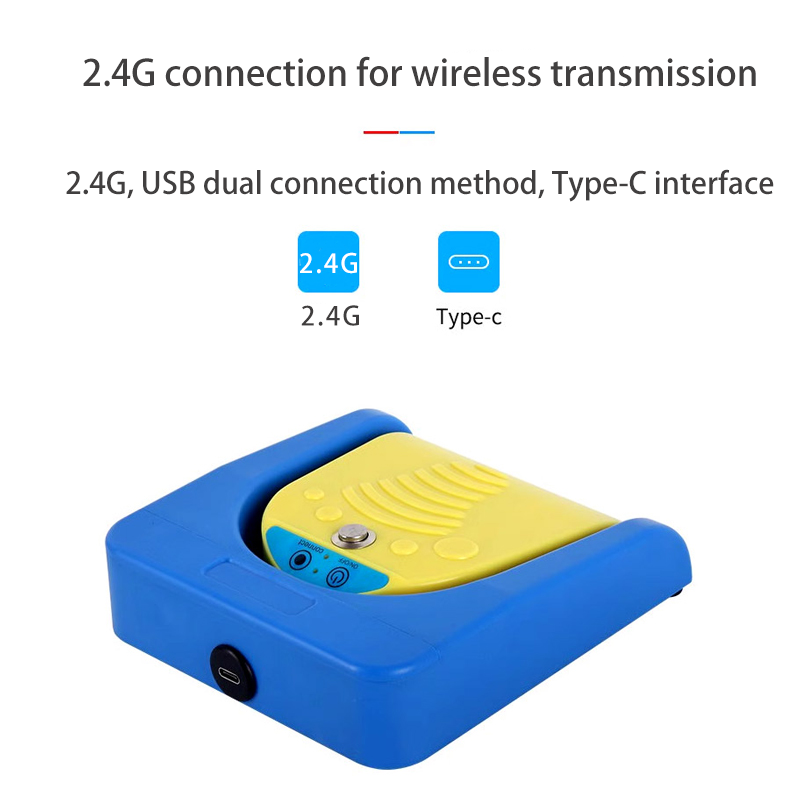
PCsensor Dual-Mode Foot Switch Pedal FS2016G1
$38.67 – $40.60
Curated recommendations
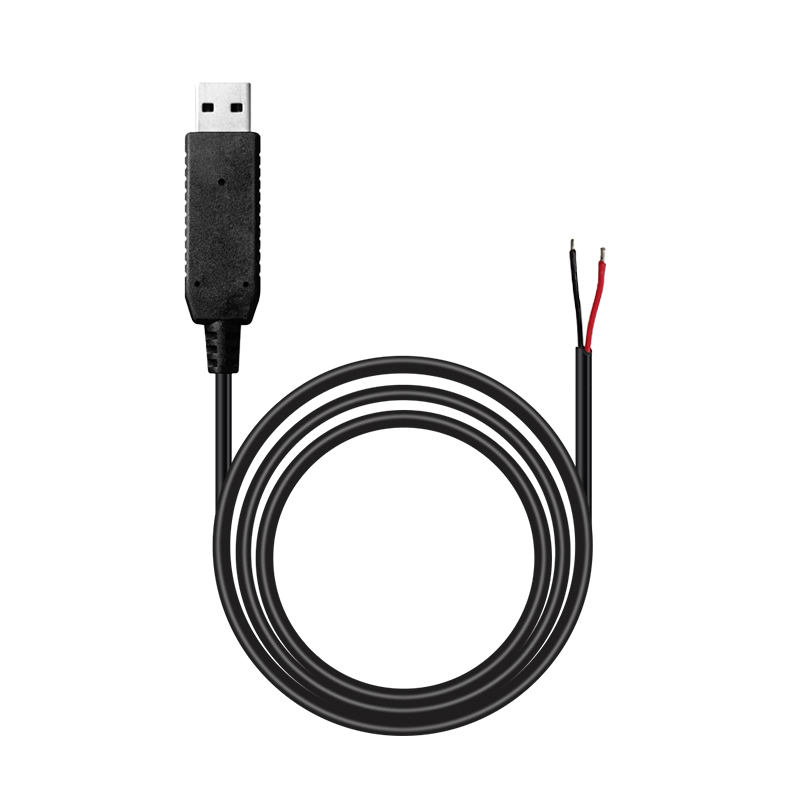
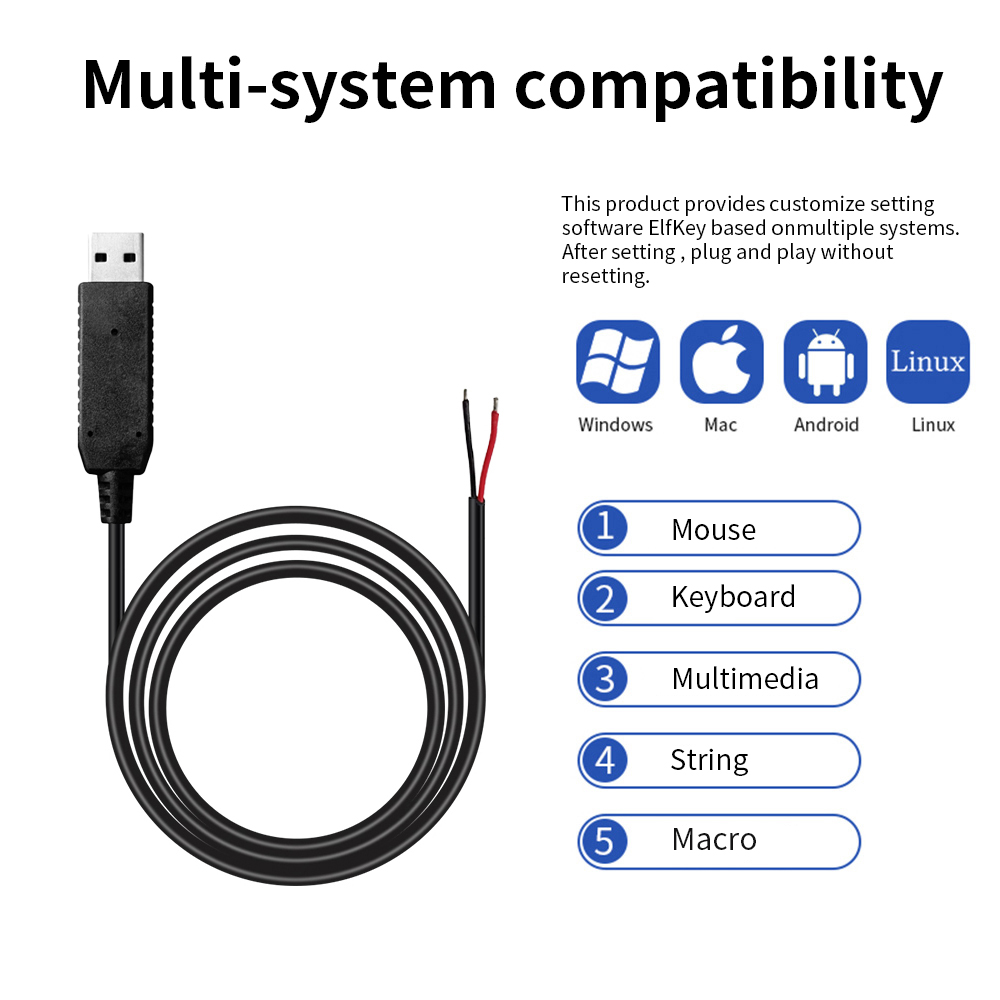
PCsensor USB switch cable can connect 6 pcs different switches
$11.50 – $26.95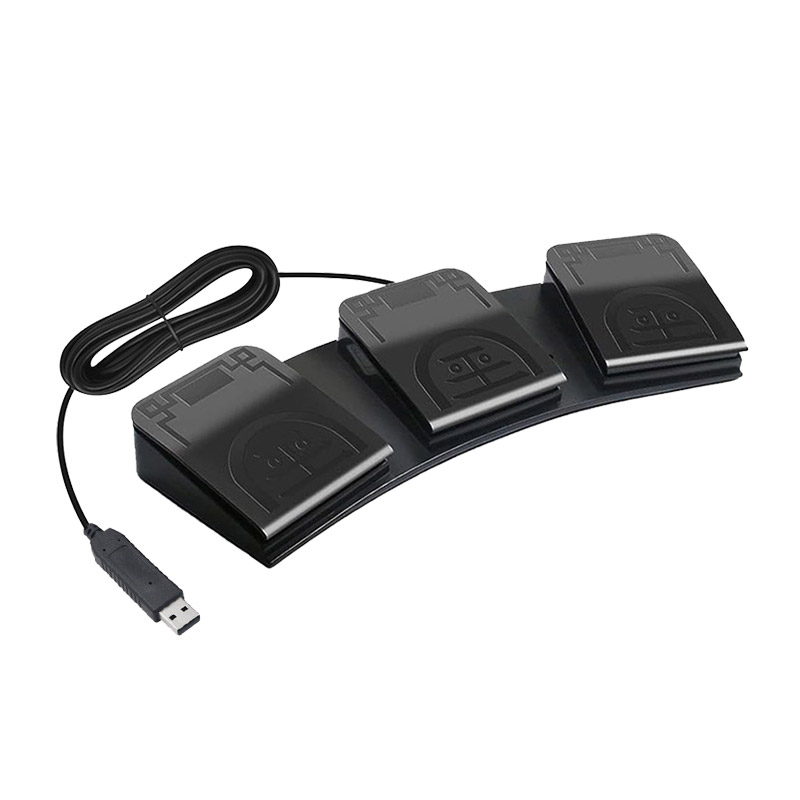
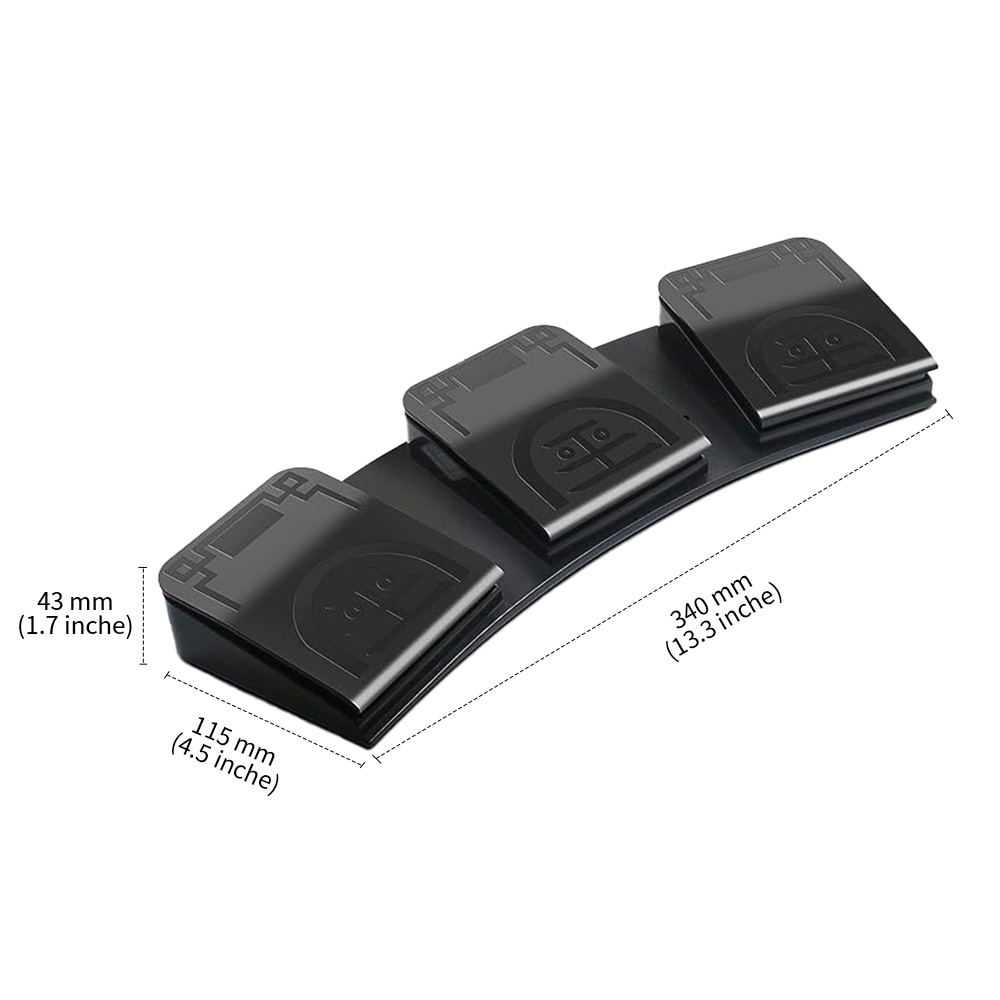
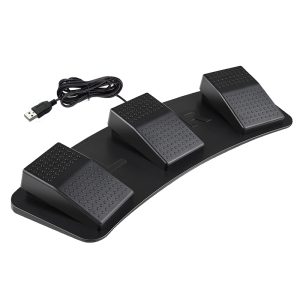
PCsensor USB Foot Switch Triple Pedals
$33.00 – $49.80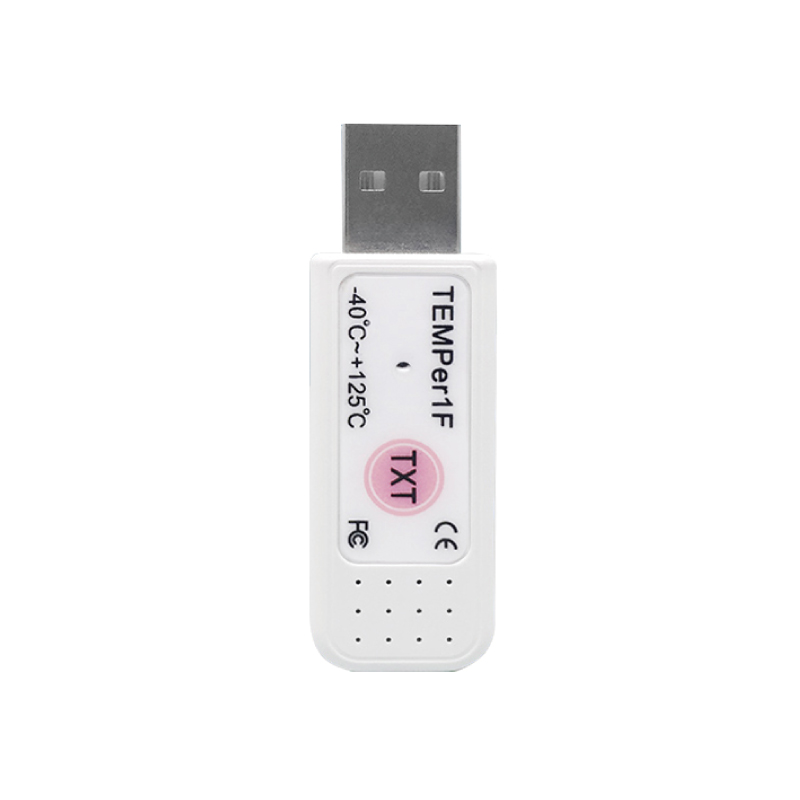
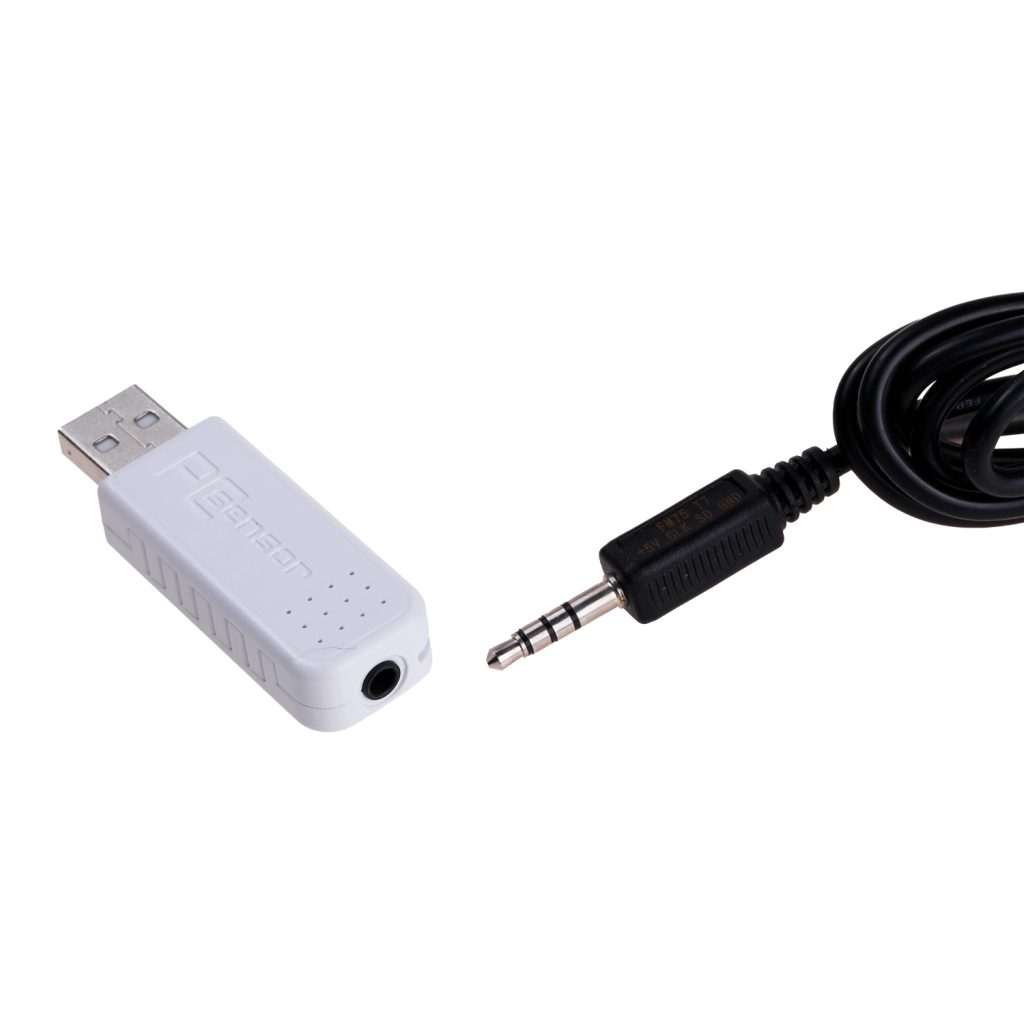
PCsensor USB Temperature Sensor Waterproof Temperature Probe
$15.00 – $32.99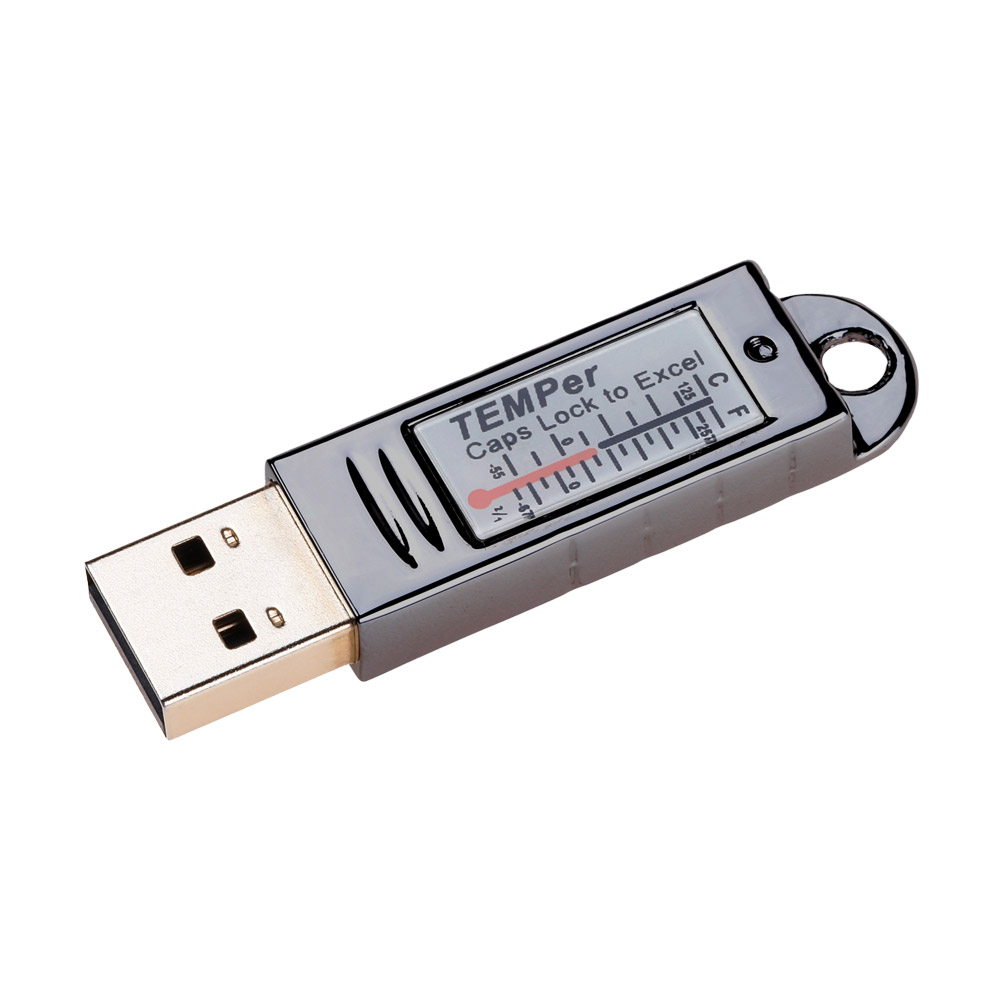
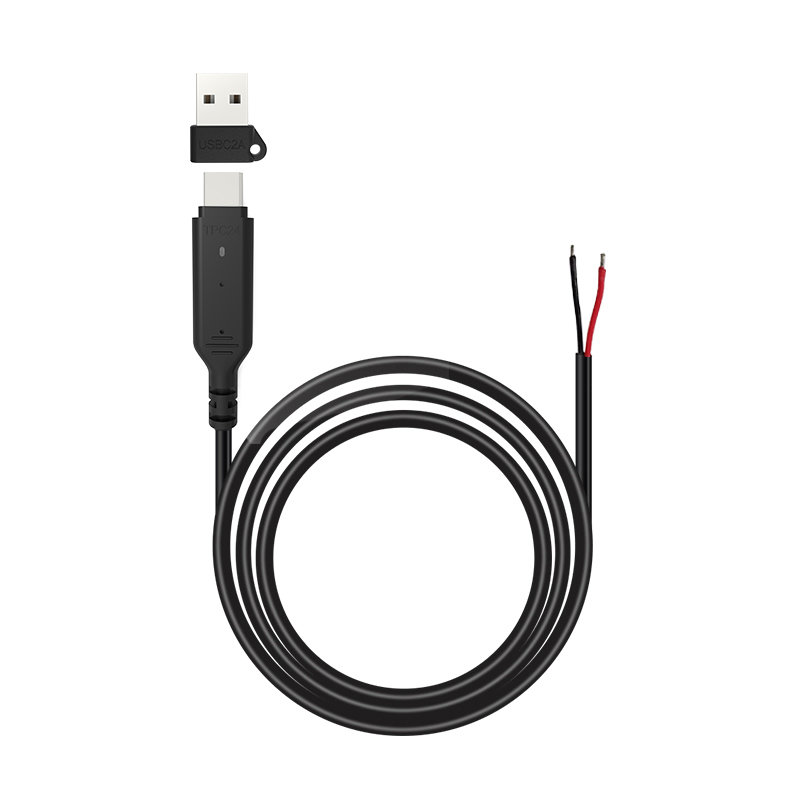
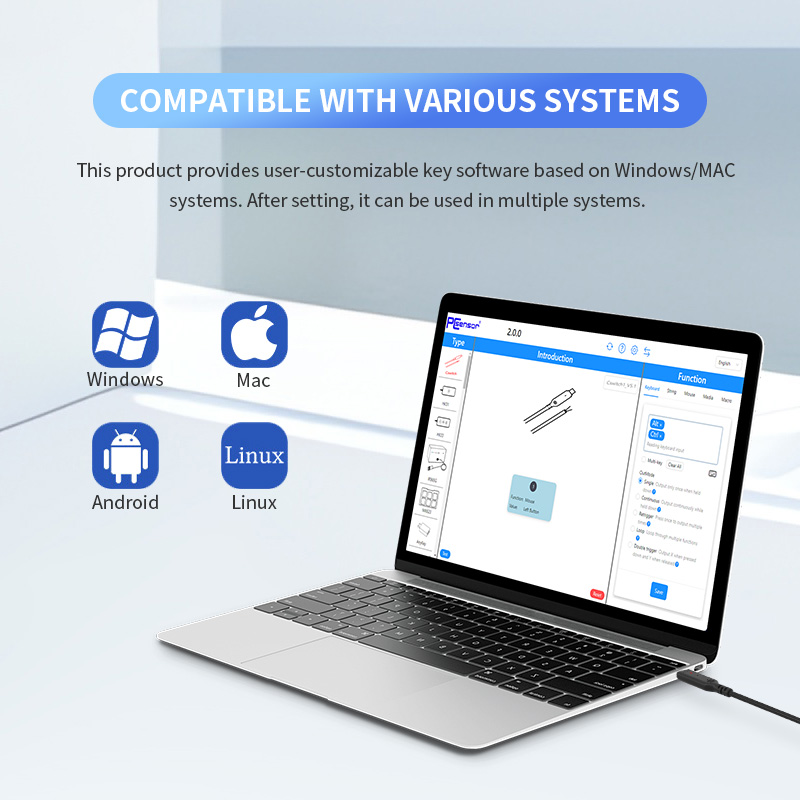
PCsensor DIY switch cable USB Type-C
$12.50 – $13.50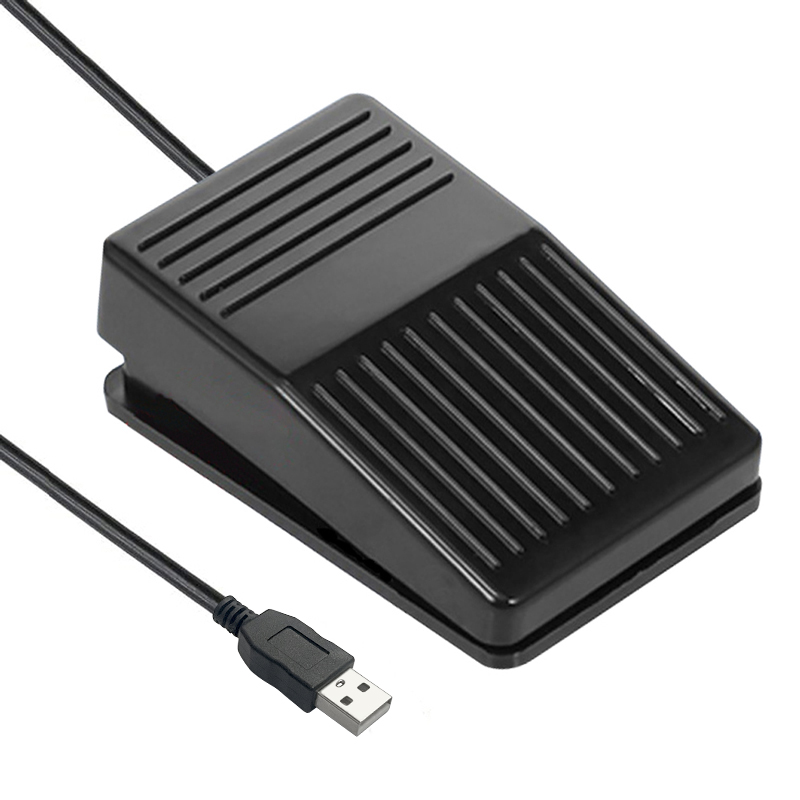
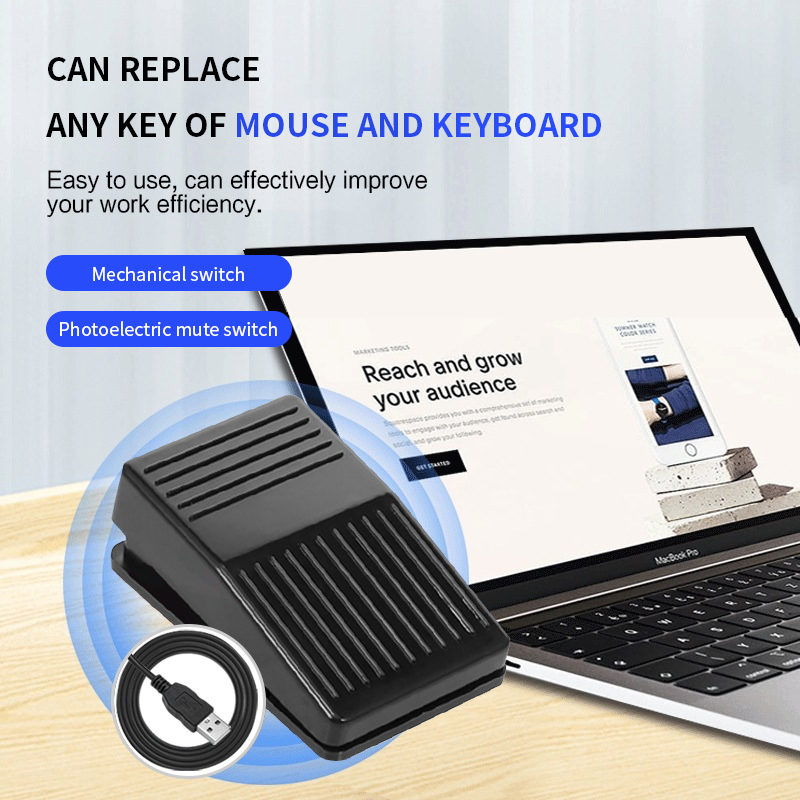
PCsensor USB Foot Swtich Pedal FS221
$13.65 – $23.99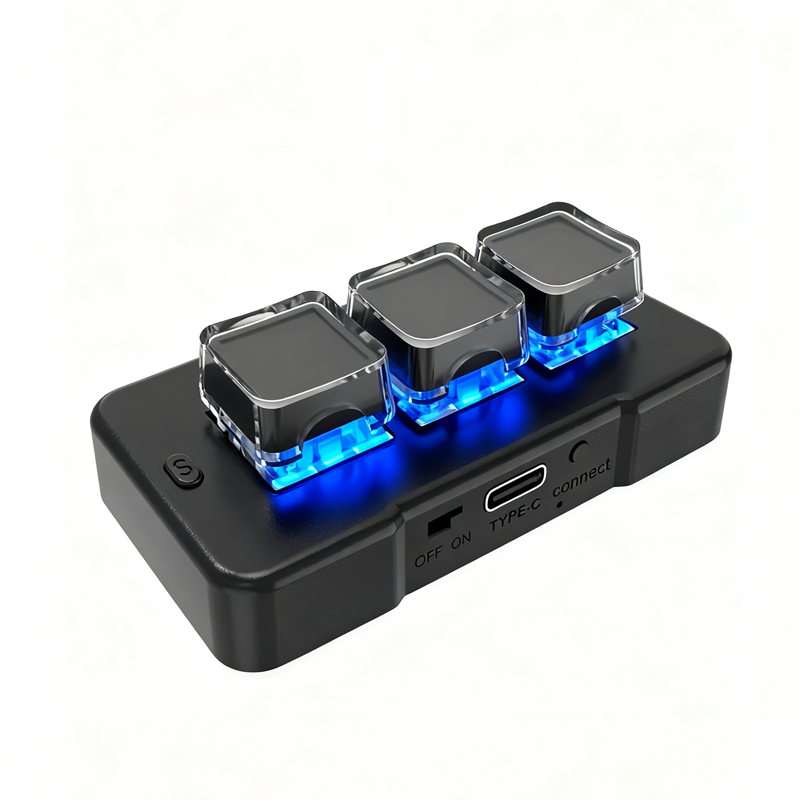
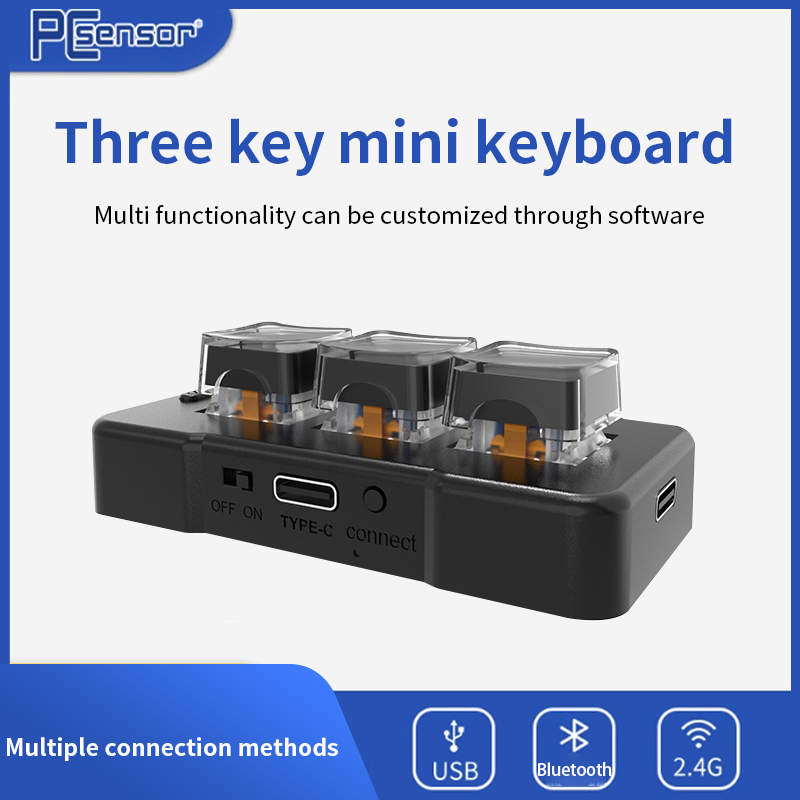
PCsensor 3 Keys Mini Keyboard
$15.80 – $22.90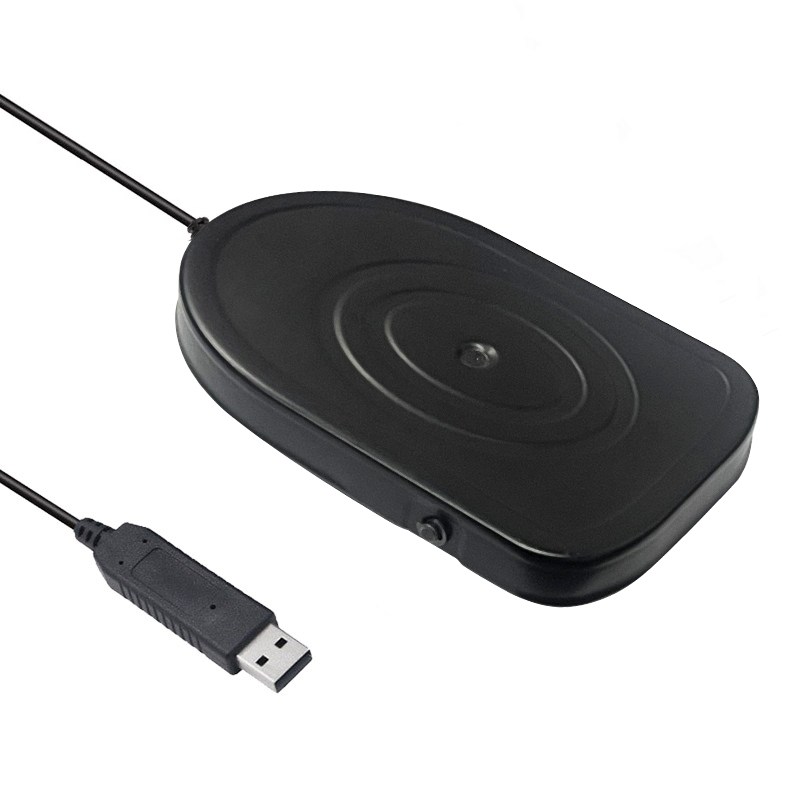
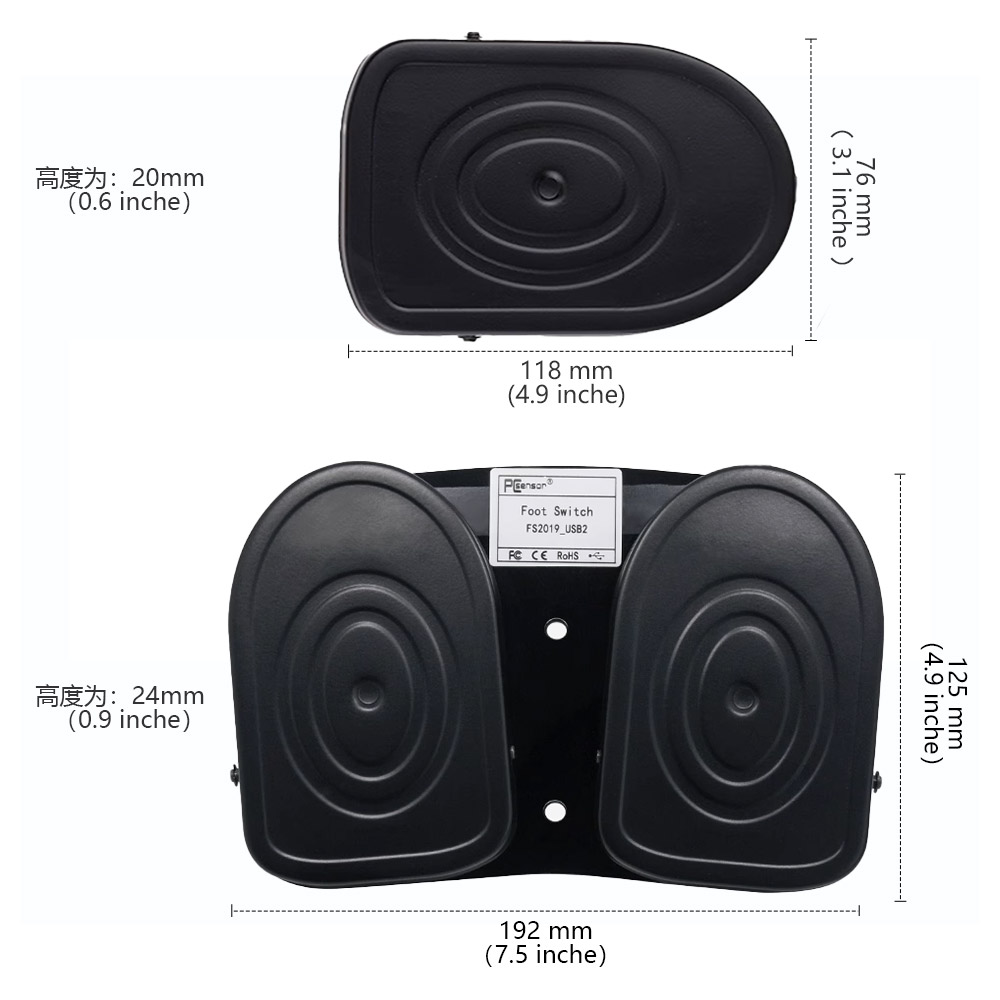
PCsensor USB Metal Foot Switch Pedal FS2019
$19.00 – $28.00